

Introduction
When I first considered designing my own website, WordPress seemed like the obvious choice. It’s a platform that promises flexibility, ease of use, and endless customisation options. But can I really design my own website in WordPress without any technical expertise? The answer is a resounding yes, and in this article, I’ll walk you through everything you need to know to get started.
Key Takeaways
- WordPress is a user-friendly platform suitable for beginners and professionals alike.
- Choosing the right theme is crucial for achieving the look and functionality you desire.
- Plugins can extend your website’s capabilities without requiring coding knowledge.
- Regular updates and backups are essential for maintaining your site’s security.
- Mobile responsiveness ensures your website looks great on all devices.
Introduction to WordPress Website Design
What is WordPress
WordPress is a powerful content management system (CMS) that powers over 40% of websites globally. It’s open-source, meaning anyone can use and modify it for free. Whether you’re building a blog, portfolio, or e-commerce site, WordPress offers the tools to bring your vision to life. Its intuitive interface makes it accessible even for those with no coding experience.
Understanding the WordPress Dashboard
The WordPress dashboard is your control centre, where you manage everything from content to design. It’s divided into sections like Posts, Pages, and Appearance, each serving a specific purpose. Navigating the dashboard might feel overwhelming at first, but with a bit of exploration, you’ll find it’s designed to simplify the website-building process. For more insights, check out our WordPress ultimate guide.
The Importance of Choosing the Right Theme
Your theme dictates your website’s appearance and functionality. WordPress offers thousands of free and premium themes, each with unique designs and features. A well-chosen theme aligns with your brand and goals, saving you time on customisation. For example, if you’re creating a business site, a professional theme like those discussed in our WordPress design services can make a world of difference.
Benefits of Designing Your Own Website in WordPress
Cost-Effectiveness of WordPress
One of the most compelling reasons to choose WordPress is its affordability. Unlike custom-built websites, which can cost thousands, WordPress offers a budget-friendly solution. Many themes and plugins are free, and even premium options are reasonably priced. This makes it accessible for small businesses and individuals who want a professional online presence without breaking the bank. Plus, the platform’s open-source nature means no licensing fees.
Beyond initial savings, WordPress reduces long-term costs. Its intuitive interface means you won’t need to hire a developer for minor updates. Whether you’re adding a blog post or tweaking a page, the process is straightforward. For those looking to maximise value, WordPress website design services can provide tailored solutions without the hefty price tag of traditional web development.
Flexibility and Customization Options
WordPress is renowned for its adaptability. Whether you’re building a portfolio, an e-commerce store, or a blog, the platform caters to diverse needs. Thousands of themes and plugins allow you to customise every aspect of your site, from layout to functionality. This flexibility ensures your website grows with your business, adapting to new goals and trends without requiring a complete overhaul.
The ability to tweak designs without coding knowledge is a game-changer. Tools like the WordPress Customizer let you preview changes in real-time, ensuring your vision comes to life seamlessly. For advanced users, custom CSS and child themes offer even greater control. With WordPress’s popularity, there’s no shortage of tutorials and resources to help you master these features.
Large Community and Support Resources
WordPress boasts a global community of developers, designers, and users. This network is invaluable for troubleshooting and learning. Forums, blogs, and social media groups provide instant answers to common questions. Whether you’re stuck on a technical issue or seeking design inspiration, someone has likely shared a solution. This collective knowledge makes WordPress one of the most user-friendly platforms available.
Official resources, like the WordPress Codex and support forums, are equally robust. Regular updates ensure security and compatibility, while third-party developers contribute plugins and themes to expand functionality. For those who prefer hands-on help, WordPress maintenance services offer professional assistance, ensuring your site runs smoothly without the hassle of DIY fixes.
Getting Started with WordPress
Setting Up Your WordPress Account
Creating a WordPress account is the first step to building your website. Head to WordPress.com or your chosen hosting provider’s dashboard to begin. The process is straightforward: enter your email, choose a username, and set a password. Once registered, you’ll access the WordPress Dashboard, your control centre for managing content, themes, and plugins. This is where the magic happens.
For self-hosted sites, the setup involves downloading WordPress from WordPress.org and installing it on your server. Many hosting providers offer one-click installations, simplifying the process. Whether you opt for a hosted or self-hosted solution, the initial setup is designed to be user-friendly, even for beginners. If you’re unsure, WordPress hosting guides can clarify the best path for your needs.
Selecting a Hosting Provider
Your hosting provider plays a crucial role in your website’s performance and reliability. Look for providers offering WordPress-specific plans, which often include optimised servers and pre-installed software. Key factors to consider are uptime guarantees, customer support, and scalability. A good host ensures your site loads quickly and remains secure, which is vital for user experience and SEO.
Shared hosting is cost-effective for beginners, while dedicated or VPS hosting suits high-traffic sites. Many providers also offer free SSL certificates and automated backups, adding layers of security. Researching and comparing hosts can save headaches down the line. For a deeper dive, explore how to choose the right web hosting provider.
Installing WordPress
Once you’ve chosen a host, installing WordPress is often a one-click process. Most providers include an auto-installer in their control panel, like cPanel or Plesk. Follow the prompts, and within minutes, WordPress will be ready to use. For manual installations, download the software from WordPress.org, upload it to your server via FTP, and run the installation script.
After installation, log in to your Dashboard to start customising. The default settings are a solid foundation, but you’ll want to explore themes, plugins, and settings to tailor the site to your needs. Don’t forget to update WordPress and any pre-installed plugins to ensure security and functionality from day one.
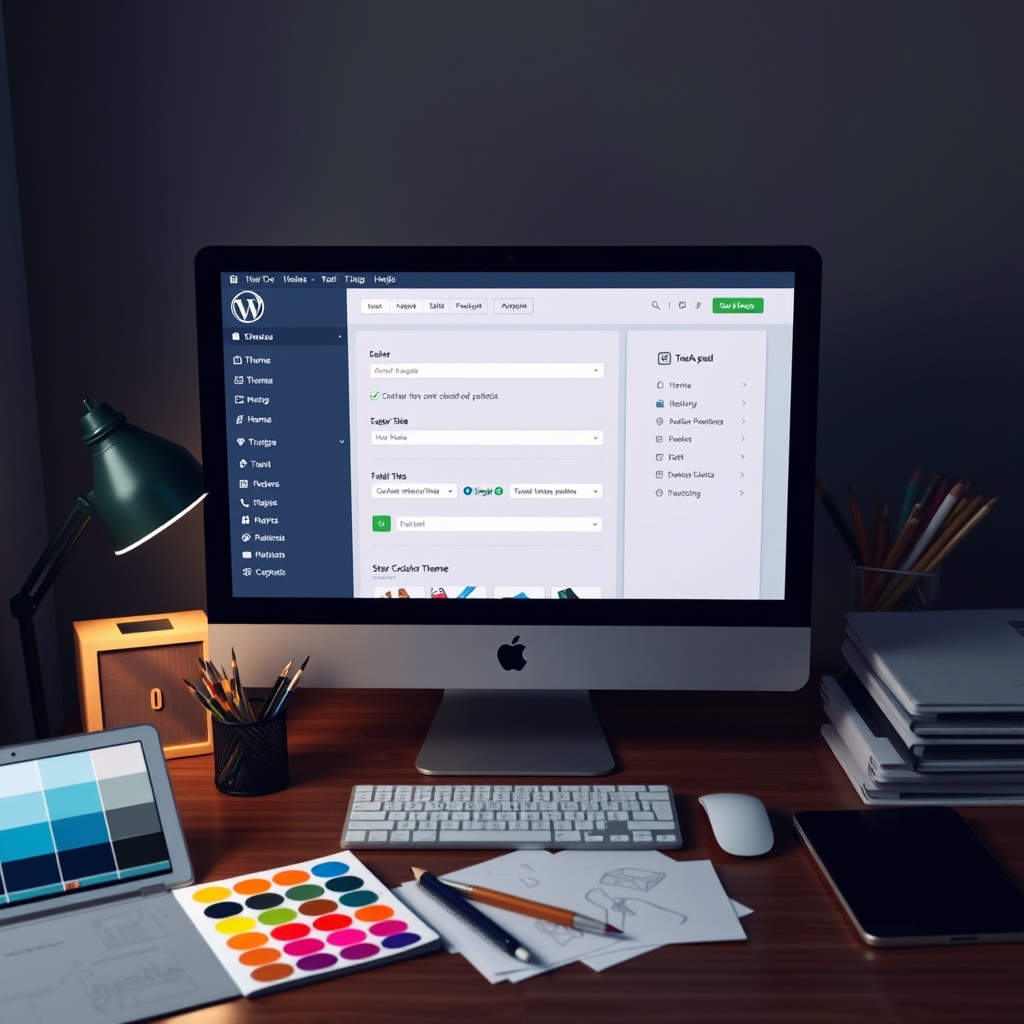
Choosing the Right WordPress Theme
Free vs. Premium Themes
WordPress offers thousands of free themes, making it easy to start without investment. These themes are ideal for beginners or simple projects, but they often lack advanced features and dedicated support. Premium themes, while costing between £30 and £100, provide superior design, functionality, and regular updates. They’re a worthwhile investment for businesses or anyone seeking a polished, unique look.
When selecting a theme, consider your long-term goals. Free themes are great for testing ideas, but premium options offer scalability. Many premium themes come with drag-and-drop builders, demo content, and responsive designs, simplifying the setup process. For a curated list of top choices, check out this WordPress theme customization guide.
Responsive Design Considerations
A responsive theme ensures your site looks great on all devices, from desktops to smartphones. With mobile traffic accounting for over half of web visits, this isn’t optional. Test themes using tools like Google’s Mobile-Friendly Test to confirm adaptability. Look for themes labelled “responsive” or “mobile-ready” in the WordPress repository or marketplaces like ThemeForest.
Beyond aesthetics, responsiveness impacts SEO. Google prioritises mobile-friendly sites in search rankings, making this a critical factor. Themes with flexible grids and scalable images automatically adjust to screen sizes, enhancing user experience. Avoid themes with rigid layouts, as they can alienate mobile users and harm your site’s performance.
Customizing Your Theme
Customisation is where WordPress shines. The built-in Customizer lets you tweak colours, fonts, and layouts without coding. For deeper changes, consider child themes, which preserve modifications during updates. Plugins like Elementor or Beaver Builder add drag-and-drop functionality, making design accessible to everyone. These tools empower you to create a site that reflects your brand perfectly.
Don’t overlook small details like favicons and custom menus, which enhance professionalism. Many themes include demo content to jumpstart your design process. Experiment with different options until you achieve the desired look. Remember, a well-customised theme not only looks good but also improves usability and engagement.
Essential Plugins for Your WordPress Site
Must-Have Security Plugins
Security should be a top priority when designing your WordPress site. I recommend installing plugins like Wordfence or Sucuri to protect against malware and brute-force attacks. These tools offer real-time monitoring and firewall protection, ensuring your site remains secure. Regular updates and scans are essential to maintain a robust defence. With cyber threats evolving, investing in a reliable security plugin is non-negotiable for any website owner.
SEO Optimization Plugins
To improve your site’s visibility, SEO plugins like Yoast SEO or Rank Math are indispensable. They guide you through keyword optimisation, meta descriptions, and readability checks. I’ve found these tools invaluable for ensuring my content ranks well on search engines. They also provide actionable insights to refine your strategy. Whether you’re a beginner or an expert, these plugins simplify the complexities of SEO.
Social Media Integration Tools
Engaging your audience across platforms is easier with social media plugins. Tools like Social Snap or Shared Counts allow seamless sharing and display social proof on your site. I’ve seen how integrating these plugins boosts traffic and fosters community interaction. Customisable buttons and automated sharing save time while maximising reach. For a cohesive online presence, these plugins are a must.
Customizing Your Website Design
Using the WordPress Customizer
The WordPress Customizer is a powerful tool for real-time design adjustments. I often use it to tweak colours, fonts, and layouts without coding. Its intuitive interface makes it accessible for beginners. Preview changes before publishing to ensure everything looks perfect. Whether refining a theme or experimenting with new styles, the Customizer streamlines the process.
Adding Custom CSS
For advanced customisation, adding custom CSS unlocks endless possibilities. I’ve enhanced my site’s uniqueness by overriding default styles. Plugins like Simple Custom CSS make this process beginner-friendly. Even small tweaks can transform your site’s aesthetic. While it requires basic coding knowledge, the results are worth the effort.
Incorporating Brand Elements
Consistency is key to building a strong brand. I ensure my logo, colour palette, and typography align across all pages. WordPress makes it easy to upload brand assets and apply them globally. Tools like Elementor or Beaver Builder simplify this further. A cohesive design reinforces professionalism and trust with your audience.
Creating Content for Your WordPress Site
Writing Engaging Blog Posts
Compelling content is the backbone of any successful website. I focus on crafting posts that resonate with my audience, using storytelling and actionable insights. Tools like Grammarly help refine my writing for clarity and impact. Consistency in tone and style builds reader loyalty. Remember, quality always trumps quantity when it comes to blogging.
Adding Images and Videos
Visual elements enhance engagement and break up text. I use high-quality images and embed videos to illustrate points effectively. Plugins like Smush optimise images for faster loading times. Videos from platforms like YouTube can be embedded seamlessly. A balanced mix of media keeps visitors engaged and improves retention rates.
Structuring Your Pages for Optimal Navigation
Clear navigation ensures visitors find what they need quickly. I organise content with intuitive menus and internal links. Tools like SEO optimisation plugins help structure pages for both users and search engines. Logical hierarchies and breadcrumbs improve usability. A well-structured site enhances user experience and reduces bounce rates.
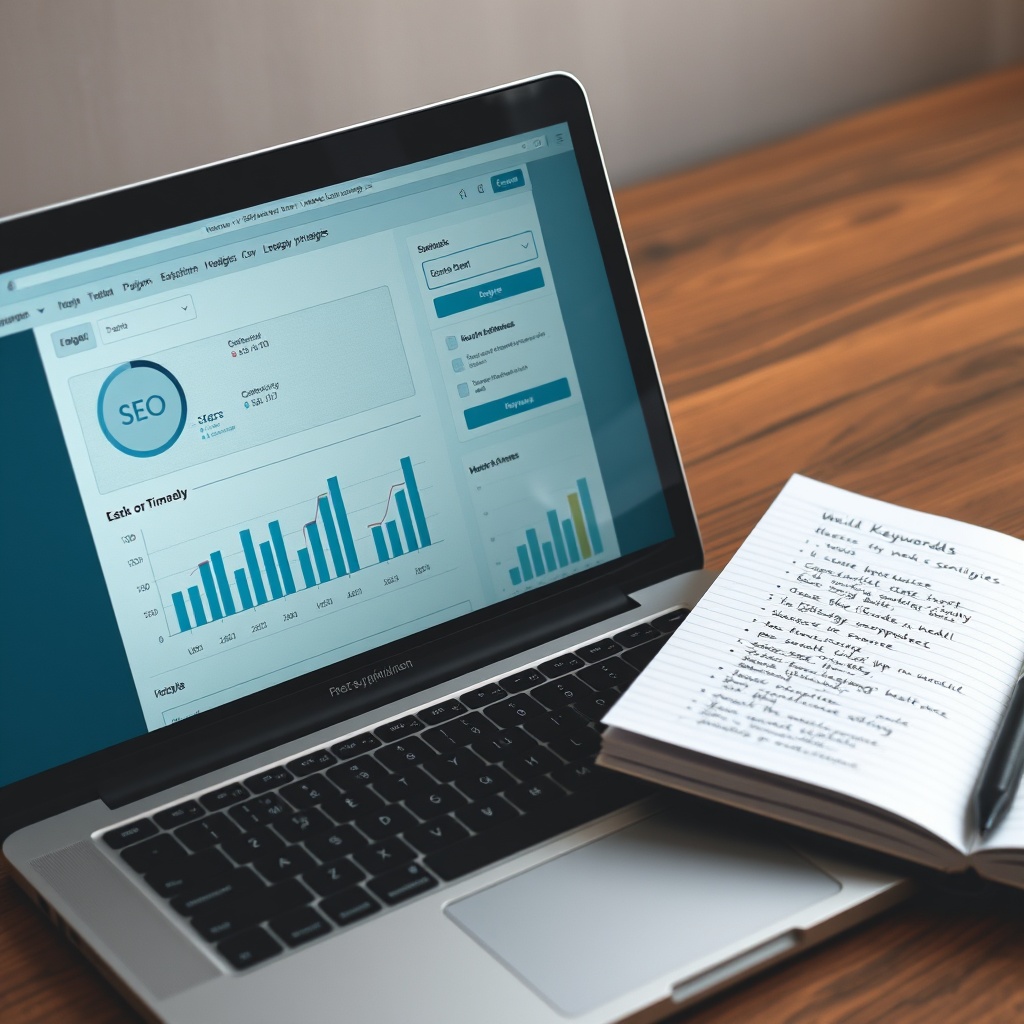
Optimizing Your WordPress Site for SEO
Keyword Research Basics
Effective SEO starts with thorough keyword research. I use tools like Google Keyword Planner or Ubersuggest to identify high-traffic terms. Understanding search intent helps tailor content to audience needs. Long-tail keywords often yield better results for niche topics. Integrating these naturally into your content boosts visibility and drives organic traffic.
On-Page SEO Strategies
Optimising individual pages is crucial for ranking. I focus on meta titles, descriptions, and header tags. Internal linking, as seen in this guide, strengthens site architecture. Alt text for images and mobile responsiveness are also key. These elements collectively improve your site’s search engine performance.
Building Backlinks
Backlinks from authoritative sites enhance credibility. I engage in guest blogging and collaborate with influencers to earn quality links. Tools like Ahrefs help track and analyse backlink profiles. Avoid spammy tactics, as they can harm your rankings. A strategic approach to backlinking fosters long-term SEO success.
Ensuring Website Security
Regular Updates and Backups
Keeping your WordPress site secure starts with regular updates. I always ensure my plugins, themes, and core software are up to date to patch vulnerabilities. Backups are equally crucial—I schedule automated backups using plugins like WordPress maintenance tools. This way, if anything goes wrong, I can restore my site quickly without losing valuable data. It’s a simple step that saves countless headaches.
I also recommend storing backups in multiple locations, such as cloud storage or external drives. This redundancy ensures I’m prepared for any scenario, from server crashes to accidental deletions. Security isn’t just about prevention; it’s about having a solid recovery plan in place. With these measures, I can focus on creating content without worrying about potential disasters.
Secure Login Practices
Weak passwords are a common entry point for hackers, so I enforce strong, unique passwords for all user accounts. Two-factor authentication (2FA) adds an extra layer of security, requiring a second verification step. I’ve found that plugins like Wordfence make implementing 2FA straightforward. Additionally, I limit login attempts to prevent brute force attacks, which can lock out unauthorised users after a few failed tries.
Another habit I’ve adopted is changing the default WordPress login URL. This small tweak makes it harder for bots to target my admin page. Combined with regular monitoring of user activity, these practices create a robust defence against unauthorised access. Security isn’t a one-time task—it’s an ongoing commitment to protecting my site and its visitors.
Dealing with Hack Attempts
Despite precautions, hack attempts can still occur. When I notice suspicious activity, my first step is to scan my site for malware using tools like Sucuri. If I find infected files, I remove them immediately and replace them with clean backups. I also review user accounts and revoke access for any suspicious profiles. Quick action minimises damage and restores trust in my site’s integrity.
Post-attack, I analyse the breach to identify vulnerabilities. This might involve updating outdated plugins or strengthening password policies. Learning from these incidents helps me stay ahead of potential threats. Security is a continuous journey, and each challenge makes my site more resilient. By staying vigilant, I ensure my WordPress site remains a safe space for my audience.
Mobile Responsiveness and User Experience
Testing Your Site on Mobile Devices
With most users accessing websites via mobile, I prioritise testing my site on various devices. Tools like Google’s Mobile-Friendly Test provide quick insights into responsiveness. I also manually check how my site looks on different screen sizes, ensuring text is readable and buttons are easy to tap. A seamless mobile experience keeps visitors engaged and reduces bounce rates.
I often tweak my theme’s settings to optimise mobile layouts. For example, I adjust font sizes and spacing to prevent overcrowding on smaller screens. Mobile testing isn’t a one-off task—I revisit it regularly, especially after adding new content or features. A responsive design isn’t just a convenience; it’s a necessity in today’s digital landscape.
Improving Page Load Speed
Slow-loading pages frustrate users and harm SEO rankings. To boost speed, I compress images using plugins like Smush and enable caching to reduce server load. I also minimise the use of heavy scripts and opt for lightweight themes. These changes significantly improve performance, especially for mobile users with slower connections.
Regularly monitoring my site’s speed with tools like GTmetrix helps me identify bottlenecks. Sometimes, switching to a faster hosting provider or using a content delivery network (CDN) makes a noticeable difference. Speed optimisation is an ongoing process, but the payoff—happy visitors and better search rankings—is worth the effort.
Enhancing Navigation for Mobile Users
Mobile navigation should be intuitive and clutter-free. I simplify my menu structure, using dropdowns sparingly to avoid overwhelming users. Sticky menus or a “back to top” button improve accessibility, especially on long pages. I also ensure clickable elements are large enough to tap without zooming, enhancing the overall user experience.
Testing navigation with real users provides valuable feedback. I often ask friends or colleagues to explore my site on their phones and note any pain points. Small adjustments, like rearranging menu items or adding search functionality, can make a big difference. A well-designed mobile interface keeps visitors engaged and encourages them to explore more of my content.
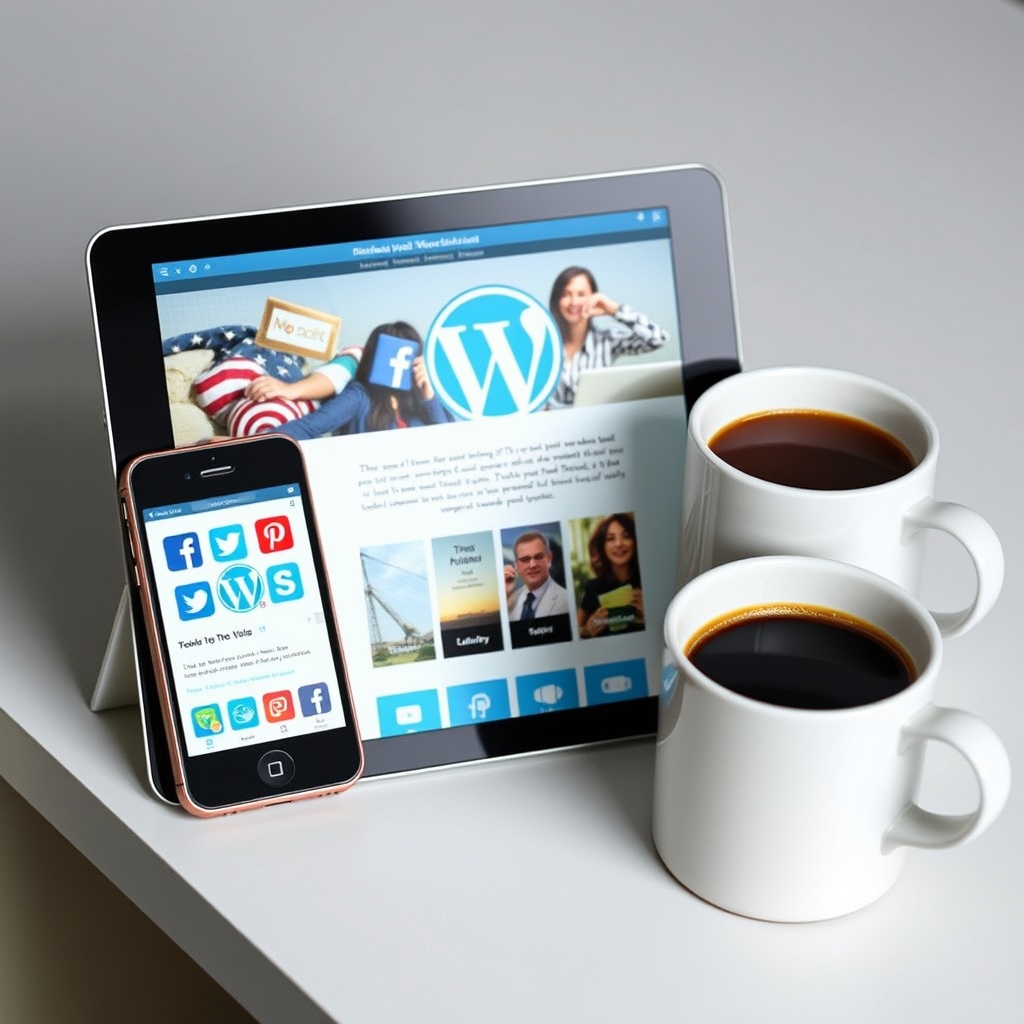
Leveraging Social Media
Connecting Your Site to Social Platforms
Integrating social media into my WordPress site amplifies my reach and engagement. I use plugins like social media marketing tools to link my profiles seamlessly. Adding social sharing buttons to blog posts encourages visitors to share my content, driving organic traffic. I also embed live feeds from platforms like Twitter or Instagram to keep my site dynamic and interactive.
Cross-promoting content between my site and social channels creates a cohesive online presence. For example, I share blog excerpts on LinkedIn with a link back to the full post. This strategy not only boosts visibility but also fosters a sense of community. Social media isn’t just a marketing tool—it’s a way to connect with my audience on a deeper level.
Social Sharing Buttons
Strategic placement of social sharing buttons increases the likelihood of content being shared. I position them at the top and bottom of posts, as well as floating sidebars for easy access. Customising the buttons to match my brand’s aesthetic maintains consistency while making them visually appealing. Plugins like AddToAny offer flexibility in design and functionality.
I also track which platforms generate the most shares using analytics tools. This data helps me tailor my content to resonate with my audience’s preferences. Social sharing isn’t just about virality; it’s about creating content that sparks conversations and builds relationships. By making sharing effortless, I turn readers into advocates for my brand.
Creating Content That Encourages Shares
Shareable content often includes actionable tips, compelling visuals, or thought-provoking insights. I focus on crafting posts that solve problems or inspire my audience, such as how-to guides or industry trends. Including eye-catching images or infographics enhances appeal, making posts more likely to be shared across platforms.
I also encourage engagement by ending posts with a question or call-to-action. Prompting readers to share their thoughts in the comments or on social media fosters interaction. Creating share-worthy content isn’t about gimmicks—it’s about delivering value that resonates. When my audience finds my content useful, they’re naturally inclined to spread the word.
Analyzing Your Website’s Performance
Using Google Analytics
Google Analytics is a powerful tool for understanding how visitors interact with your WordPress site. By integrating it, I can track metrics like page views, bounce rates, and session durations. This data helps me identify which content resonates with my audience and which pages need improvement. Setting it up involves adding a tracking code to my site, often through a plugin like MonsterInsights for seamless integration.
Analysing user behaviour through Google Analytics allows me to refine my content strategy. For instance, if a blog post has high traffic but low engagement, I might tweak its layout or call-to-action. The insights gained are invaluable for making informed decisions that enhance my site’s performance and user experience. It’s like having a roadmap to success.
Interpreting Traffic Data
Understanding traffic data goes beyond just numbers. I look at demographics, devices used, and referral sources to paint a complete picture. If most visitors come from mobile devices, I prioritise mobile optimisation. Similarly, if social media drives traffic, I focus on strengthening my presence there. These insights help me tailor my efforts to my audience’s preferences.
Traffic spikes often correlate with specific campaigns or content updates. By analysing these patterns, I can replicate successful strategies. For example, if a guest post brings in significant traffic, I might collaborate with more influencers. Interpreting data isn’t just about reacting—it’s about proactively shaping my site’s future.
Making Data-Driven Improvements
Data-driven decisions are the backbone of a successful WordPress site. If analytics reveal a high exit rate on a particular page, I investigate potential issues like slow loading times or unclear navigation. Tools like SEO optimisation plugins complement this by highlighting technical improvements.
Regularly reviewing performance metrics ensures my site evolves with my audience’s needs. For instance, if a new feature like a chatbot increases engagement, I might expand its use. The goal is continuous improvement, leveraging data to create a site that not only attracts visitors but keeps them coming back.
Advanced Customization Techniques
Child Themes Explained
Child themes are a safe way to customise my WordPress site without altering the parent theme’s core files. They inherit all functionalities while allowing me to make changes independently. This means I can update the parent theme without losing my customisations. Creating a child theme involves a few simple steps, like setting up a new directory and stylesheet.
Using child themes gives me the flexibility to experiment with design and functionality. For example, I can override template files or add custom CSS. It’s a best practice for maintaining a professional and adaptable site. Plus, it ensures my site remains stable and secure, even as I tweak its appearance.
Custom Post Types and Taxonomies
Custom post types and taxonomies extend WordPress beyond blogs and pages. They let me organise content in unique ways, like portfolios, testimonials, or events. Plugins like Custom Post Type UI simplify the process, but I can also code them manually for more control. This flexibility is perfect for tailoring my site to specific needs.
For instance, if I run a photography site, a custom post type for galleries keeps my work organised. Taxonomies like tags or categories further refine content grouping. These features make my site more functional and user-friendly, enhancing both my workflow and my visitors’ experience.
Working with Page Builders
Page builders like Elementor or Beaver Builder revolutionise how I design my WordPress site. They offer drag-and-drop interfaces, eliminating the need for coding skills. I can create complex layouts, add animations, and customise every detail visually. This speeds up the design process while ensuring a professional look.
Page builders also come with pre-designed templates, saving me time and effort. For example, I can quickly set up a landing page with a built-in template and tweak it to match my brand. The ability to see changes in real-time makes these tools indispensable for crafting a polished, responsive site.
Maintaining and Updating Your WordPress Site
Scheduling Regular Content Updates
Keeping my WordPress site fresh with regular content updates is crucial for engagement and SEO. I plan a content calendar to ensure consistency, whether it’s blog posts, product updates, or news. Tools like Editorial Calendar help me stay organised. Fresh content not only attracts visitors but also signals to search engines that my site is active.
Updating existing content is equally important. I revisit older posts to add new information or improve readability. This practice boosts their relevance and search rankings. A well-maintained content strategy keeps my audience engaged and my site competitive in search results.
Keeping Plugins and Themes Updated
Regular updates for plugins and themes are non-negotiable for security and performance. Outdated software can expose my site to vulnerabilities or compatibility issues. I enable automatic updates where possible and manually review others. Before updating, I back up my site to avoid potential conflicts.
Testing updates in a staging environment ensures they won’t break my live site. For example, a plugin update might conflict with my theme, so catching issues early is key. Staying proactive with updates keeps my site running smoothly and securely, providing a seamless experience for visitors.
Engaging with Your Audience for Feedback
Feedback from my audience is invaluable for improving my WordPress site. I encourage comments, surveys, or direct messages to gather insights. Understanding their needs helps me refine content, design, and functionality. For instance, if users request a dark mode, I might consider adding it.
Engaging with my audience also builds loyalty. Responding to comments or addressing concerns shows I value their input. This two-way communication fosters a community around my site, making it more than just a platform—it becomes a dynamic, user-centric space.
Frequently Asked Questions
How do I integrate Google Analytics with WordPress?
Integrating Google Analytics involves adding a tracking code to your site, often through a plugin like MonsterInsights. This tool simplifies the process, allowing you to view analytics directly in your WordPress dashboard. It’s essential for tracking visitor behaviour and making data-driven improvements to your site.
What are the benefits of using a child theme?
A child theme lets you customise your site without altering the parent theme’s core files. This ensures your changes remain intact during updates, maintaining stability and security. It’s a best practice for anyone looking to personalise their WordPress site while keeping it future-proof.
How often should I update my plugins and themes?
Regular updates are crucial for security and performance. Aim to check for updates weekly and apply them promptly. Always back up your site before updating and test changes in a staging environment to avoid conflicts with your live site.
Why is mobile responsiveness important for my WordPress site?
Mobile responsiveness ensures your site looks and functions well on all devices, improving user experience and SEO. With most web traffic coming from mobile devices, a responsive design is essential for retaining visitors and ranking higher in search results.
